¶ Web Conferencing
Jitsi Meet is our recommended tool for web-based video conferencing.
All participants can connect to the conference using any modern web browser, on your desktop computer or your mobile phone (on a mobile phone you can optionally install an app for a better experience).
¶ If you are the meeting organizer
Your job is to:
- Pick a link for the meeting
- Communicate that link to the participants
- Be the first person to show up at the link so you can use your username and password to "open" the meeting.
¶ Pick a Link
There are two ways to pick a link.
¶ Let Jitsi Meet choose a link for you
You can take this step well in advance of your meeting.
- Go to meet.mayfirst.org and click the "Start Meeting" button.
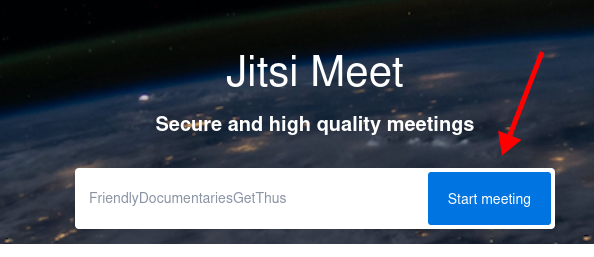
That method will open a new meeting with a random link.
- Next click the button to invite people to your meeting
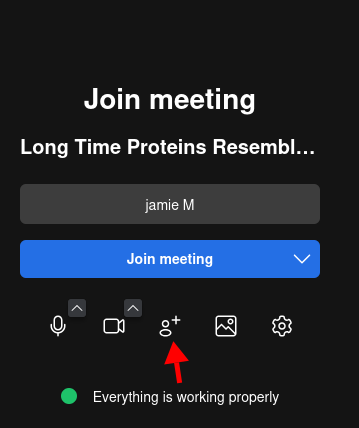
- Choose an option to send the invitation
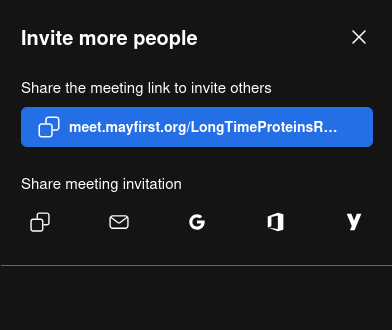
You can simply click on the blue link to copy the link and then email or text the link to your comrades.
¶ Just pick your own link
Alternatively, you can just make up your own link.
Your link must start with https://meet.mayfirst.org/ but after that, you can append anything you want, such as https://meet.mayfirst.org/OurOrgAnnualMeeting2024 or https://meet.mayfirst.org/JusticeTodayStaffMeeting.
There is no need to reserve it in advance. And you can re-use the same link over and over. However, you must pick a sufficiently random link to avoid using a link that another member is using.
¶ Make sure you have a username and password to start the meeting
Nobody needs a password to join an already started meeting, but you do need a password if you want to start a meeting.
Anyone with a working May First user login that has been granted
Video Meeting access can login with the same username and password to start a Jitsi Meet meeting.
If you are not sure, you can login to the May First control panel, lookup your user account, click the "edit" button and you should see the "Add a video meeting login to this account" option checked. If you don't see it checked, you can place a check there and click save.
¶ Using Jitsi Meet
After opening Jitsi Meet, enter an address for your meeting that starts with: https://meet.mayfirst.org/ and ends with a unique address that only has letters and numbers, for example: https://meet.mayfirst.org/mymeeting
All participants will use this address to join your meeting.
¶ Joining the meeting
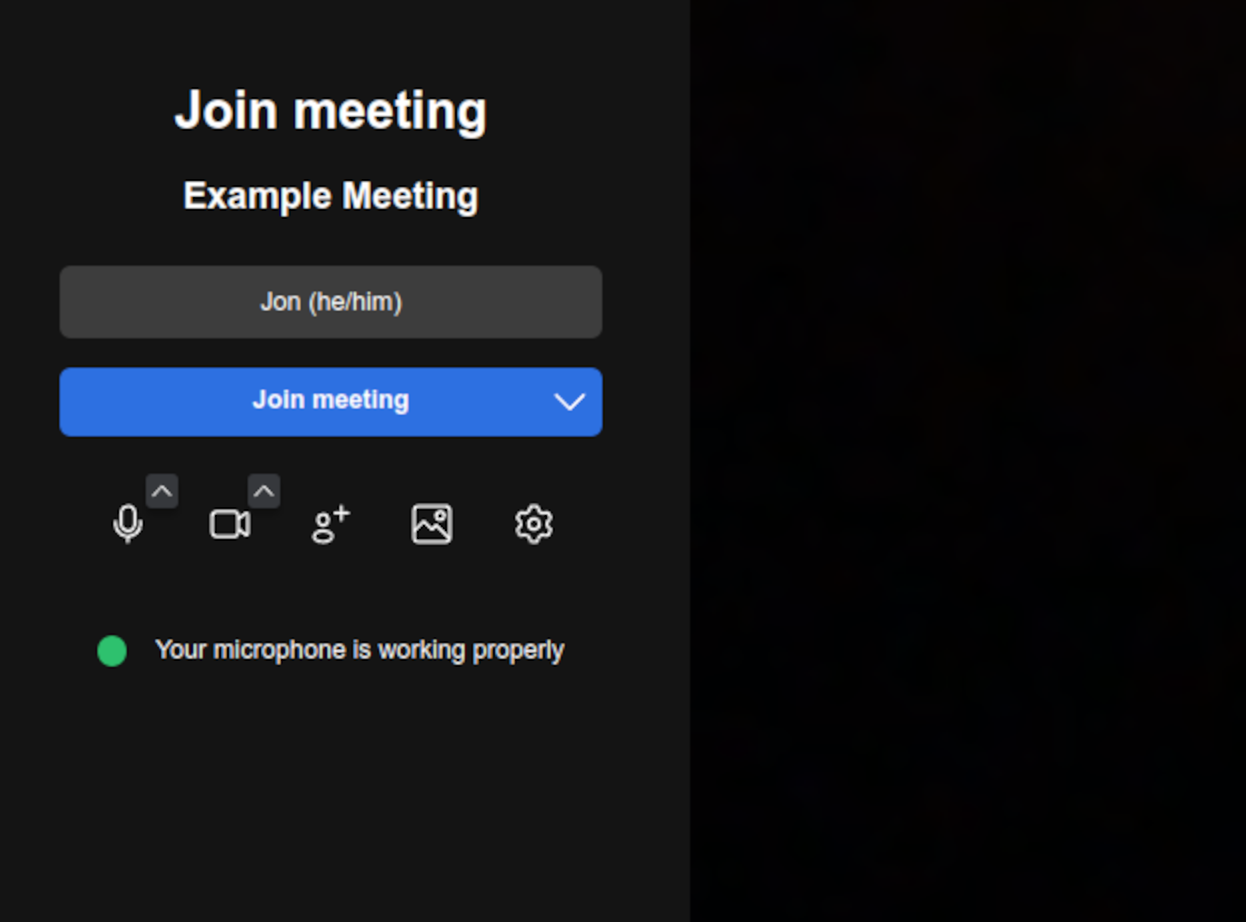
Enter your name and click Join Meeting.
¶ Using Jitsi Meet
The bottom of the screen contains a control bar.

From left to right:
- Mute/unmute (click arrow for audio configuration)
- Start/stop camera (click arrow for video configuration)
- Screen sharing
- Open/close chat
- Raise/lower your hand (click arrow for emoji reactions)
- Show/hide participant pane
- Toggle View (tile or speaker)
- More actions
- Leave the meeting
¶ Control audio/video quality
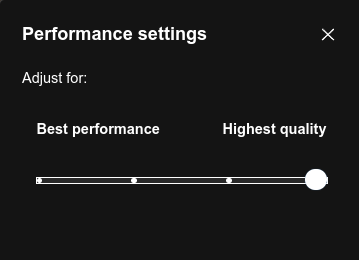
Click More Actions and select Performance Settings.
¶ With Simultaneous Interpretation
If you have a live, human interpreter and you would like your meeting to be interpreted between two different languages, you can use our special Interpretation-enabled version of Jitsi Meet, by adding an "i" to the beginning of the address:
- The Interpreter must change their name in the Jitsi interface to include the word "interpret" in it - so they can be identified as the interpreter
- A language slider will appear at the top of the screen - allowing you to hear either the interpreter or the live speakers proportionally.
- Everyone participating in the meeting should connect to https://i.meet.mayfirst.org/ using their browser and adjust the interpretation slider as needed, otherwise they will hear both voices simultaneously.
- You cannot use the mobile app when using interpretation, you must use your mobile phone browser
- iPhone and iOS devices may not work properly.
Our interpretation enhanced version of Jitsi Meet does not work with the Jitsi Meet apps - either the desktop apps or the mobile apps. Everyone will need to participate in a web browser on their desktop or laptop computer.
¶ Moderation options
¶ Muting new participants by default
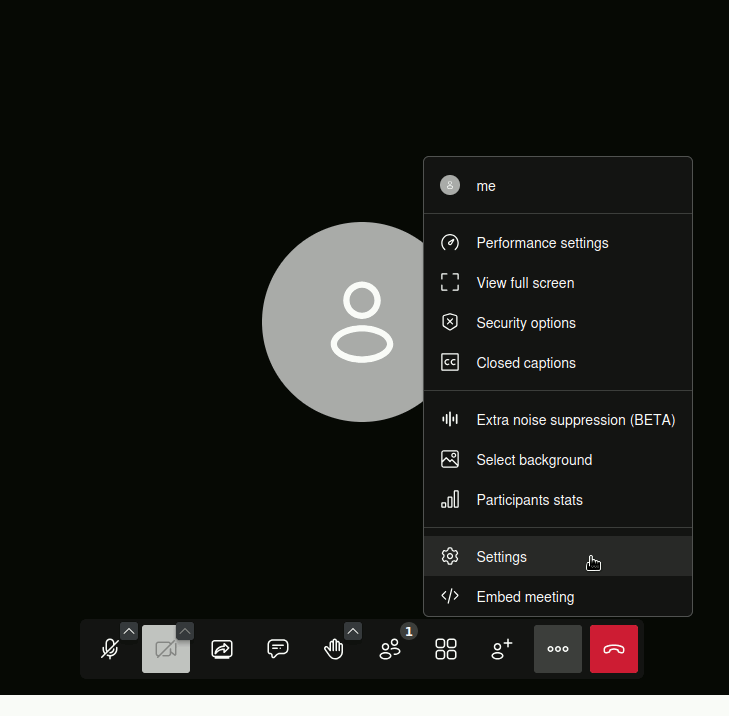
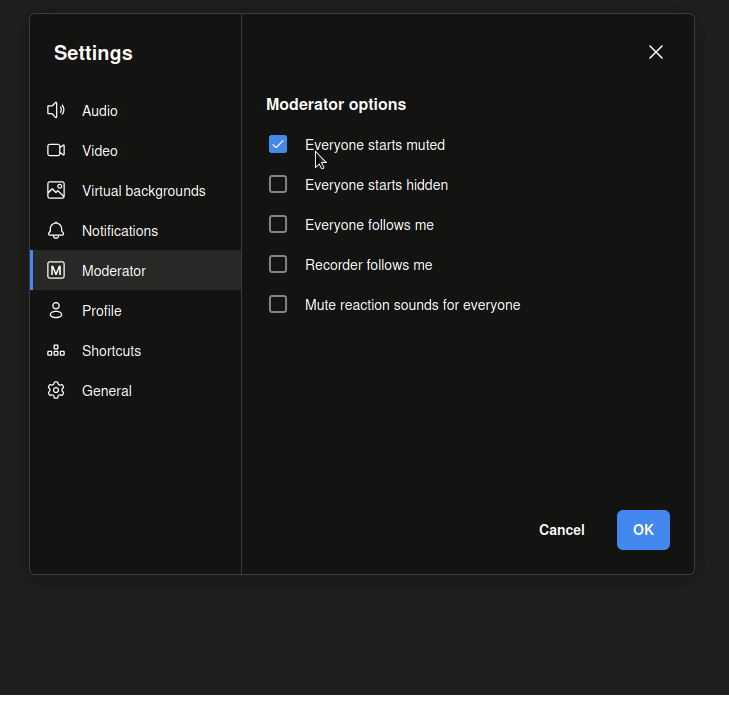
As new participants join a meeting in progress microphone configuration issues and background noise can be dispruptive. For large meetings muting new participants by default can minimize distractions and allow moderators to umute as needed. Under the settings menu and the Moderator submenu you can activate this settings.
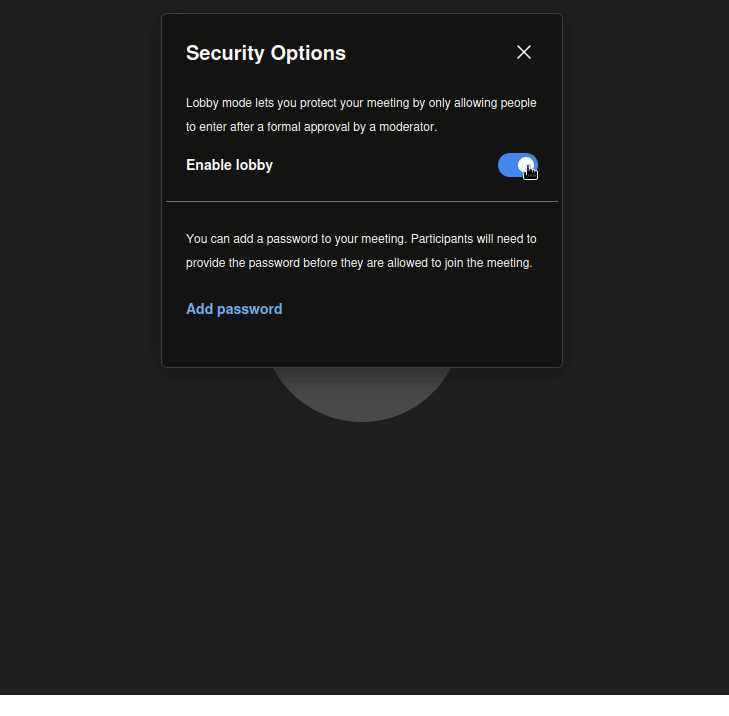
¶ Enabling the lobby
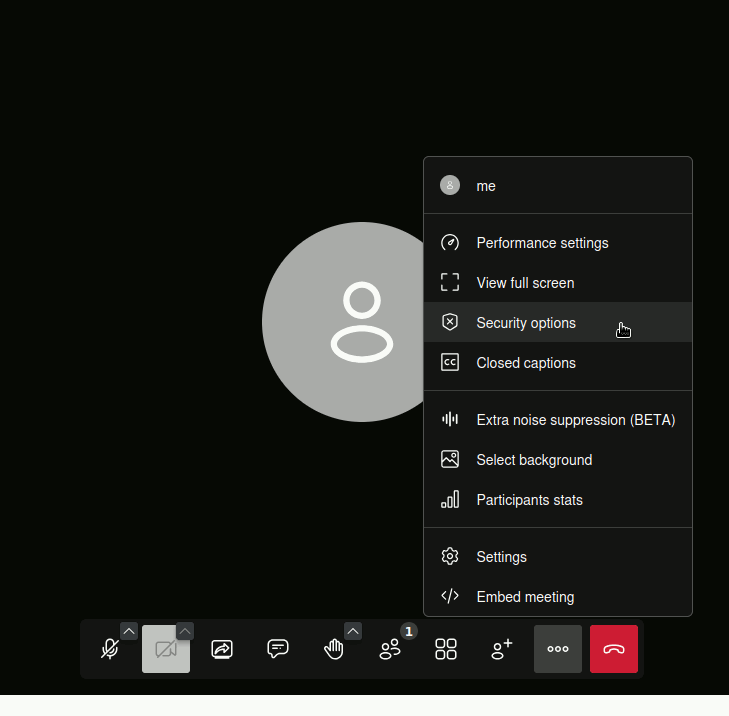
Under the security settings any moderator can enable the lobby waiting room where new people joining will wait until the moderator manually allows them to join. You can keep the lobby enabled to screen new people connecting or disable it to just let everyone come in. You can also set a password that you can share separately with people you want to allow to bypass the lobby.
 )
)
 )
)
¶ General Limitations
- Jitsi meet is tested with over 100 participants and may support more.
- To conserve bandwidth, only the last 8 participants who have spoken will have their video streams sent to everyone else.
- If you are using video for all participants, each participant needs a high bandwidth connection. Alternatively, instruct participants to turn off their video when they are not speaking.
- There is no option dial into a jitsi meeting using a regular phone call on the May First servers.
- The option to 'Start recording' to record video and audio of jitsi meet calls to a local file will appear under the 'More actions' menu when using the Chrome browser but is not available in the Firefox browser. The current recording mechanism does not work well with our interpetation channel mechanism as it ignores local per participant volume preferences and will record interpretation and other voices on top of eachother.