¶ How to manually install Drupal
¶ Basic setup
Before starting you will need to:
-
Create a new web configuration and make sure it is working with https encryption for your domain.
¶ Make sure Composer is installed.
Installing newer versions of Drupal requires using the Composer dependency manager. Composer should be included by default on our shared web servers. Once you are connected to the server over ssh you can check which version is available like this:
site377803writer@weborigin008:~$ composer --version
Older versions of composer should still work but may display some warnings. For cleaner results you may follow these instructions to install the newest version of composer before installing Drupal.
¶ Use Composer to download Drupal and dependencies
The root install path and web root path for a Composer based Drupal install can be customized but this guide will take the simplest route by the using the default paths and adjusting the web configuration document root for this site.
Make sure you are inside your existing web folder before starting:
site377803writer@weborigin008:~/web$
You can see a list of all version of Drupal versions available with Composer:
composer show drupal/recommended-project --all
To install the newest version of Drupal version 11 into a folder name of your choosing replace my_site_name with another name in this command:
composer create-project "drupal/recommended-project:^11" my_site_name
You should end up with a file layout that looks like this when listed:
site377803writer@weborigin008:~/web$ ls -l
total 144
-rw-r--r--  1 site377803writer site377803writer    509 Dec  3 19:09 index.html
drwxr-xr-x  5 site377803writer site377803writer   4096 Dec  3 19:26 my_site_name
The install process should also have created a subdirectory named web inside your new site folder that containe the Drupal files that should be publicly available for your site.
site377803writer@weborigin008:~/web$ ls -ld my_site_name/web/
drwxr-xr-x 7 site377803writer site377803writer 4096 Dec  3 19:29 my_site_name/web/
¶ Change the document root of your web configuration
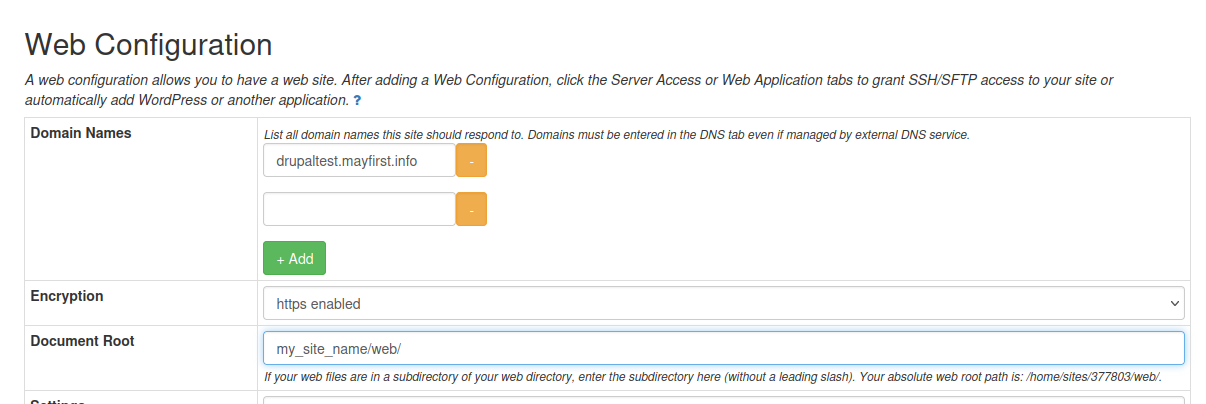
Edit your web configuration in the May First control panel and in the Advanced Settings change the Document Root field to point to the path of the new web subdirectory relative to the original web folder. In this example it is my_site_name/web/
¶ Continue with the web installer
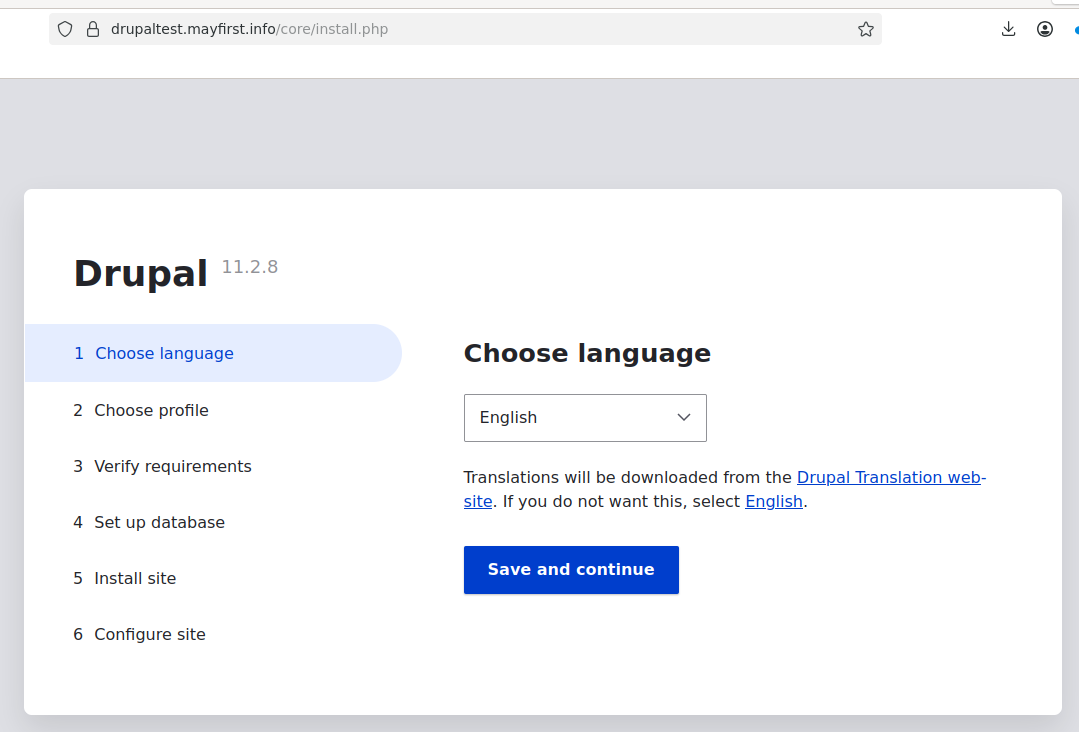
At this point your should be able to reach the Drupal interactive web installer by visiting the url of the domain(s) setup in your web configuration. In this example https://drupaltest.mayfirst.info Be ready to provide your MySQL/Mariadb database details to the installer.
¶ Using Drush
The web server will have a version of drush installed but you should switch to your site folder to install the newest version of drush.
site377803writer@weborigin008:~/web/my_site_name$ composer require drush/drush
¶ Run installer with drush
As an alternative to the web installer you can use drush to run the ineractive install process in the console. Be ready to provide your MySQL/Maridb database details. Make sure to invoke your own version of drush and not the system version.
site377803writer@weborigin008:~/web/my_site_name$ ./vendor/bin/drush site:install
¶ Deleting and starting over
If for any reason you want to start over and remove or move your project folder you might be surprised to find that some of the file have been created with write permissions removed.
site377803writer@weborigin008:~/web$ rm -rf my_site_name/
rm: cannot remove 'my_site_name/web/sites/default/settings.php': Permission denied
rm: cannot remove 'my_site_name/web/sites/default/files': Permission denied
rm: cannot remove 'my_site_name/web/sites/default/default.settings.php': Permission denied
rm: cannot remove 'my_site_name/web/sites/default/default.services.yml': Permission denied
These files should still be owned by your user so you can just enable write permissions recrsively on this folder and then immediately delete it.
site377803writer@weborigin008:~/web$ chmod -R u+w my_site_name
site377803writer@weborigin008:~/web$ rm -rf my_site_name/