Unfortunately, Gmail is phasing out this feature in January 2026. Following these steps is not advisable.
Before you get started, be sure you have setup your email account in May First and you have your username and password handy.
- Login to your Gmail account and click the gear icon to access your settings. You may need to click "See all settings"
- Choose the "Accounts and Import" tab at the top
¶ Setup Receiving email
- Under "Check mail from other accounts" click "Add a mail account"
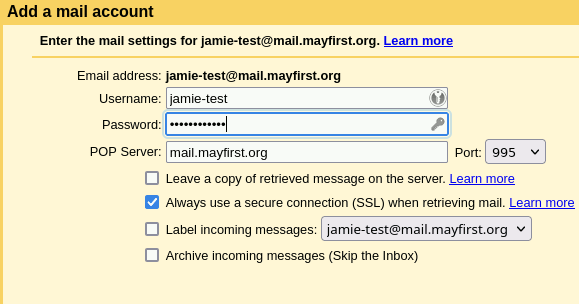
- You should be prompted for your email address, enter: YOURUSERNAME@mail.mayfirst.org. Enter this email address even if you have setup a personal domain name. Be sure to change "YOURUSERNAME" to your actual username.
- Select "Import emails from my other account (POP3)"
- Enter your password, and fill out the remaining fields. Be sure to:
- Check the "Always use a secure connection (SSL) when retrieving mail."
- You may check "Leave a copy of retrieved message on the server.", however, then your email on our server will count against your quota
¶ Setup Sending Email
- Where is says "Send email as" click "Add another address"
- Enter the full email address that you want to appear as your from address.
- On the next screen:
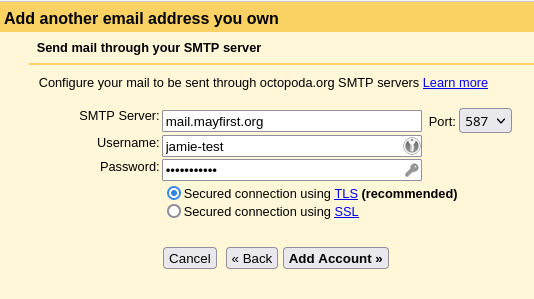
- SMTP Server: mail.mayfirst.org
- Username: your user name
- Password: your password
For the username, be sure to use the user name, not your email address. Your username might be different than the part the comes before the @ sign in your email address. When in doubt, try logging in at https://roundcube.mayfirst.org/ to confirm that you have the right username and password.