¶ About the Control Panel
The May First control panel is a custom web interface that allows members to manage resources created on the May First hosting infrastructure like user accounts, emails addresses, websites, and other services.
¶ General concepts
¶ Hosting Orders
Membership resources are grouped into hosting orders. By default each hosting order is associated with a specific domain name but this domain can be changed or additional domains added later.
Within any single hosting order multiple resources can be created and configured however only one website (web configuration) can be created per hosting order.
Members using a hosting plan can create multiple hosting orders as needed.
¶ Admin Permissions and Views
The control panel offers three different roles and views to different options and resources based on the level of access assigned to a user account.
- member access - user accounts with member level admin privileges can edit resources in any hosting order, create and delete hosting orders and view technical contacts.
- hosting order access - user accounts with hosting order admin privileges can create and edit resources within a specific hosting order.
- user access - normal user accounts without admin privileges.
¶ Navigating the control panel
Users will see up to three different control panel interface "views" corresponding to their levels of access.
¶ User access
Unprivileged user accounts will have access to this screen by default. User accounts with member access or hosting order access can choose to edit a user account from the user tab within the hosting order view in order to see these options.

From the user account editing screen users can:
- Change account password
- Set an Auto Responder Message for any mailboxes associated with your account. This useful for creating automatic replies to any incoming emails when you are out of the office on leave or vacation for an extended period.
- Add a recovery email address to directly receive password reset links.
Password reset links are also sent to member technical contacts by default
¶ Hosting order access
User accounts can be added to the Hosting Order Access tab to gain access to this screen.
User accounts with hosting order access or member access will see this screen by default.
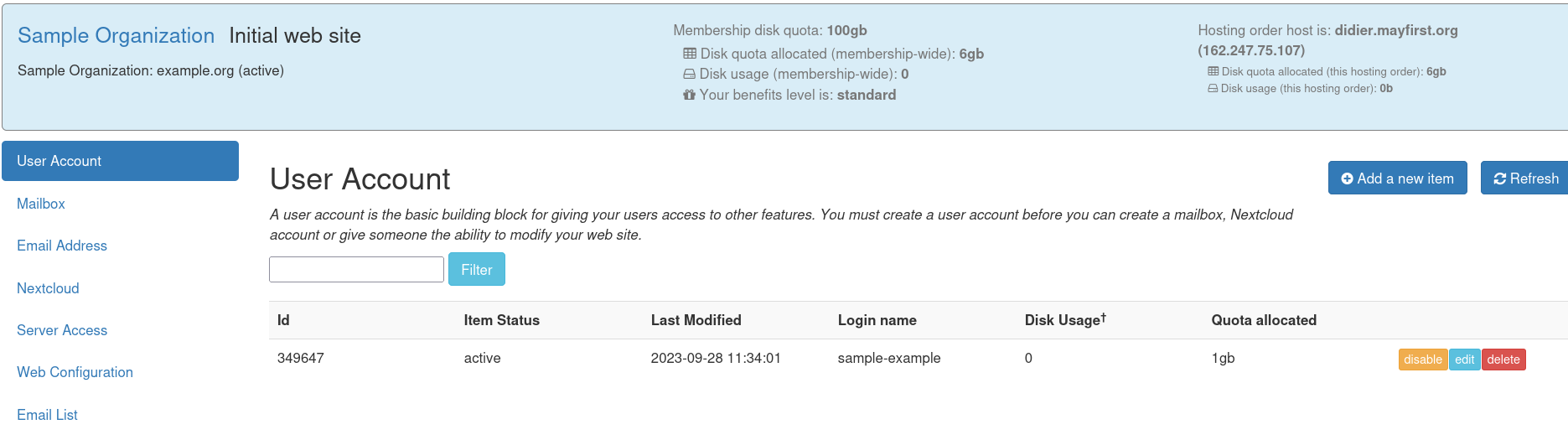
In the top left corner you will either see the name of your hosting order or, if you have more than one, a drop down allowing you to choose which hosting order to view.
Members with hosting order access can realize common tasks like managing user accounts, mailboxes, email addresses, Nextcloud accounts, DNS records, Website configurations and more. See a full list of services that can be managed from the hosting order screen.
¶ Member access
User accounts can be added to the Member Access tab to gain access to this screen.
Click on the name of your membership in the upper left hand corner of the screen to navigate to the member admin level screen. Only users with member access can reach the member admin screen.
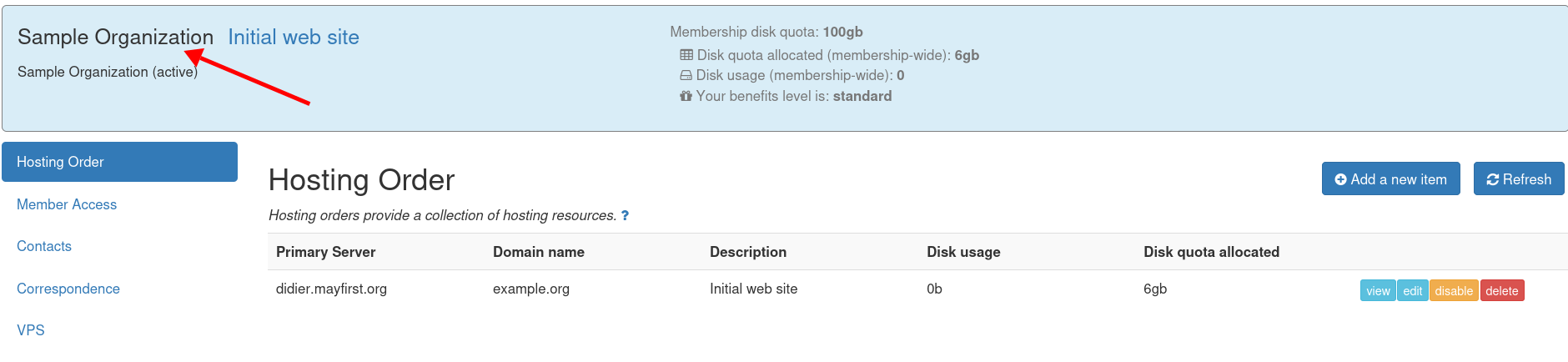
From this screen member admins can:
- Manage existing hosting orders and create new ones
- Manage which users have member admin access to this membership's resources
- Add and update technical contacts for this membership
- View the history of email correspondence sent to your technical contacts by the control panel.
- View a list of any Virtual Private Servers assigned to your membership
The assigned technical contacts will receive password reset links and disk quota alerts via email.
You can return to the hosting order access view by by clicking the Hosting Order link in the left sidebar and then clicking the view button next to the hosting order you would like to view.
¶ Disk usage monitor
Both the member view and hosting order access view can see the membership disk quota monitor at the top center of the control panel screen.
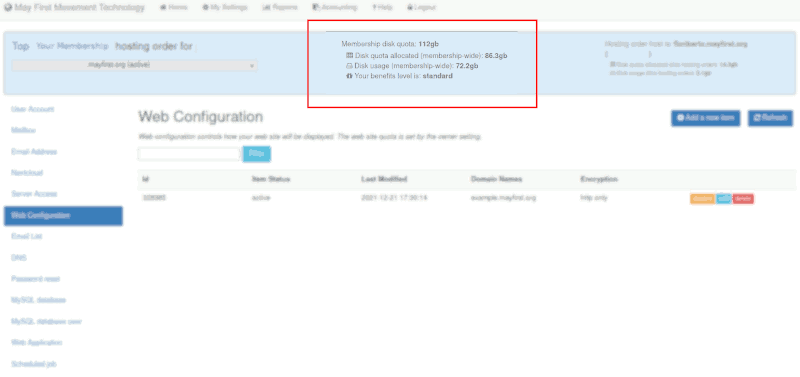
This area offers useful information about disk usage across your membership. For more details read this explanation about the disk quota monitor
¶ Control panel items
From the hosting order or member view, you will see a list of tabs corresponding to different services or configuration options in the left hand sidebar. See a full list of services that can be managed from the hosting order screen.
Clicking each tab provides a list of items that are active for that service and a button to add new items.

Each item can have several details associated with it.
Common details to service items that can be activated in the hosting order view include:
- Id - This number is an internal identifier useful for sharing with May First technical staff to report problems
- item status - The item status can change after creating or editing an item.
This field will normally be set to active, deleted, disabled but can be in a temporary pending state or an error state.
See this reference for a list control panel item states and their meaning. - last modified - the date and time that the item was last changed.
- disk usage and quota - shows the amount of hard disk space the item is taking up and the maximum amount of disk space you have allocated for it. You can click the edit button to change the amount of allocated space. Only some items show disk space usage and quotas.
- action buttons - buttons to edit, delete, disable, eanable, re-calculate disk usage
Because the status of an item can change, there is a Refresh link that will always display the most recent status of any item.