¶ How to share a folder publicly to anyone with a link
The following steps require you to login to your Nextcloud account via https://share.mayfirst.org/.
¶ Create the folder
Navigate to the folder in which you would like to place your shared folder.
Click the "+ New" button to create the folder.
¶ Share the folder
With the folder to be shared displayed (in this example it is called "My Public Shared Folder"), click the "..." menu and select "Open Details":

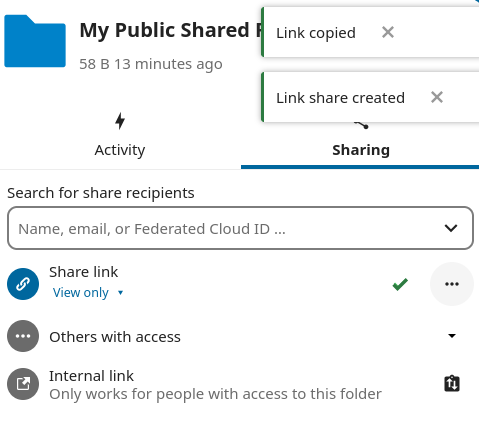
Click the "Sharing" tab to generate a share link and make the folder accessible. The link will be automatically copied to your clipboard so you can just paste it.
¶ Come back later and re-copy the link
You can always come back later and click on the icon with the up/down arrow to re-copy the link.

¶ Optionally, remove expiration date
Optionally, you may click on the "..." menu by the share menu and unselect "Set Expiration Date" so the folder is shared forever.
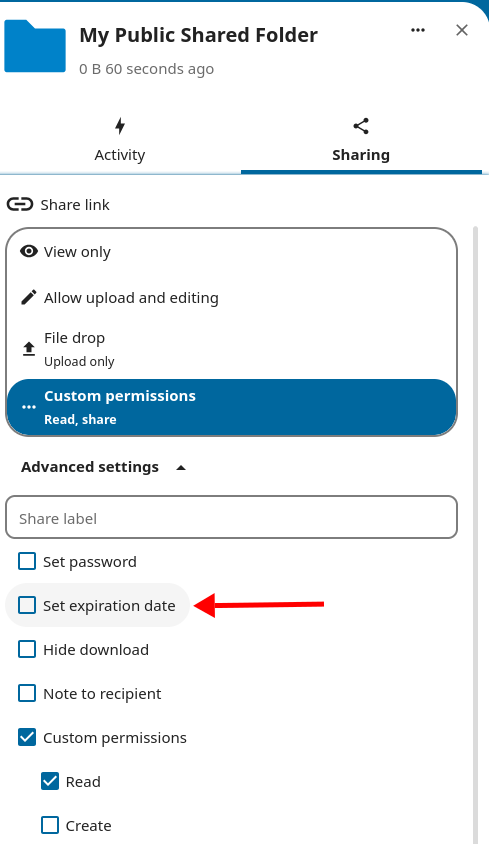
Note: be sure to click the X in the top right corner to close this share window.
Now, you can click to open the folder you create and add files to it. Do not add a share link to any of these files. Do not click the Share option for any of these files (because that will automatically create a share link).
All files in your folder will all be accessible because their enclosing folder has been shared.